Exporting Data from Adyen
If you use Adyen, your Rivet account manager may ask you to export the Interactive Payment Accounting report from the Adyen Customer Area.
Rivet uses this report to review payment lifecycle events, inspect interchange-related fields, and identify downgrade and savings opportunities for your RivetAudit.
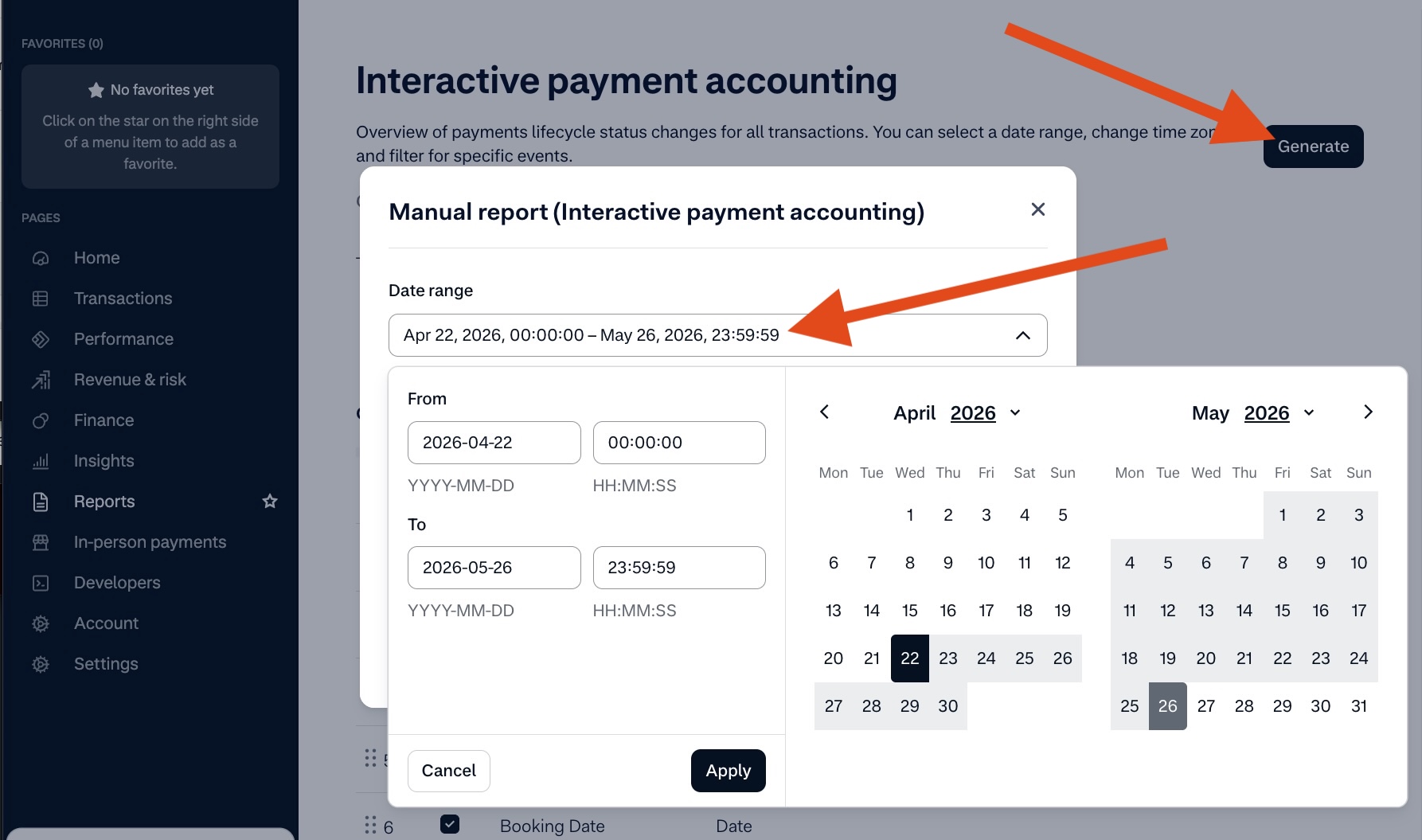
The exact date range needed for your audit should 2026-04-22 thru 2026-05-26
Export Adyen data
To pull the Interactive Payment Accounting report for your audit, follow these steps:
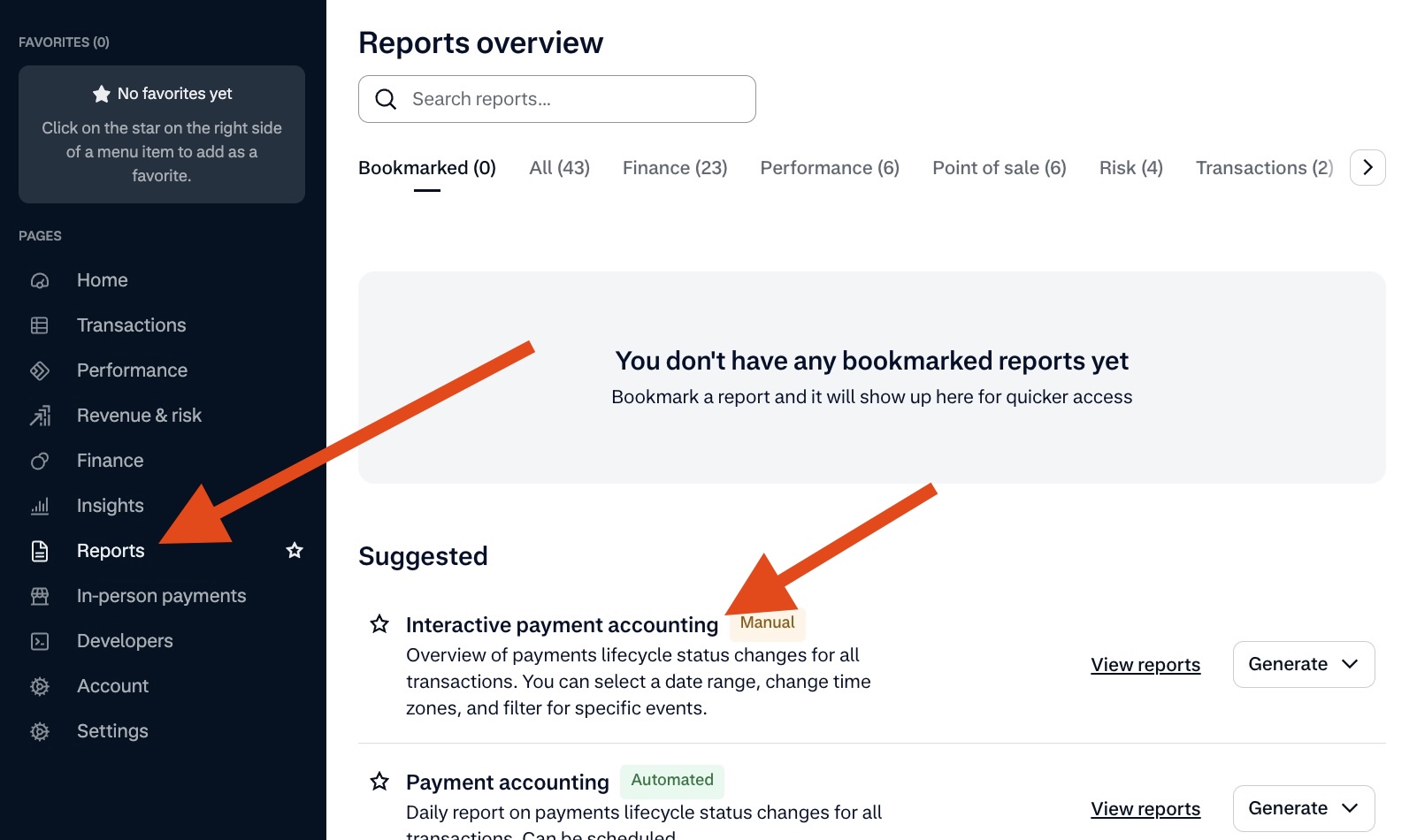
Step 1: In the Adyen Customer Area, click Reports, then find Interactive payment accounting.
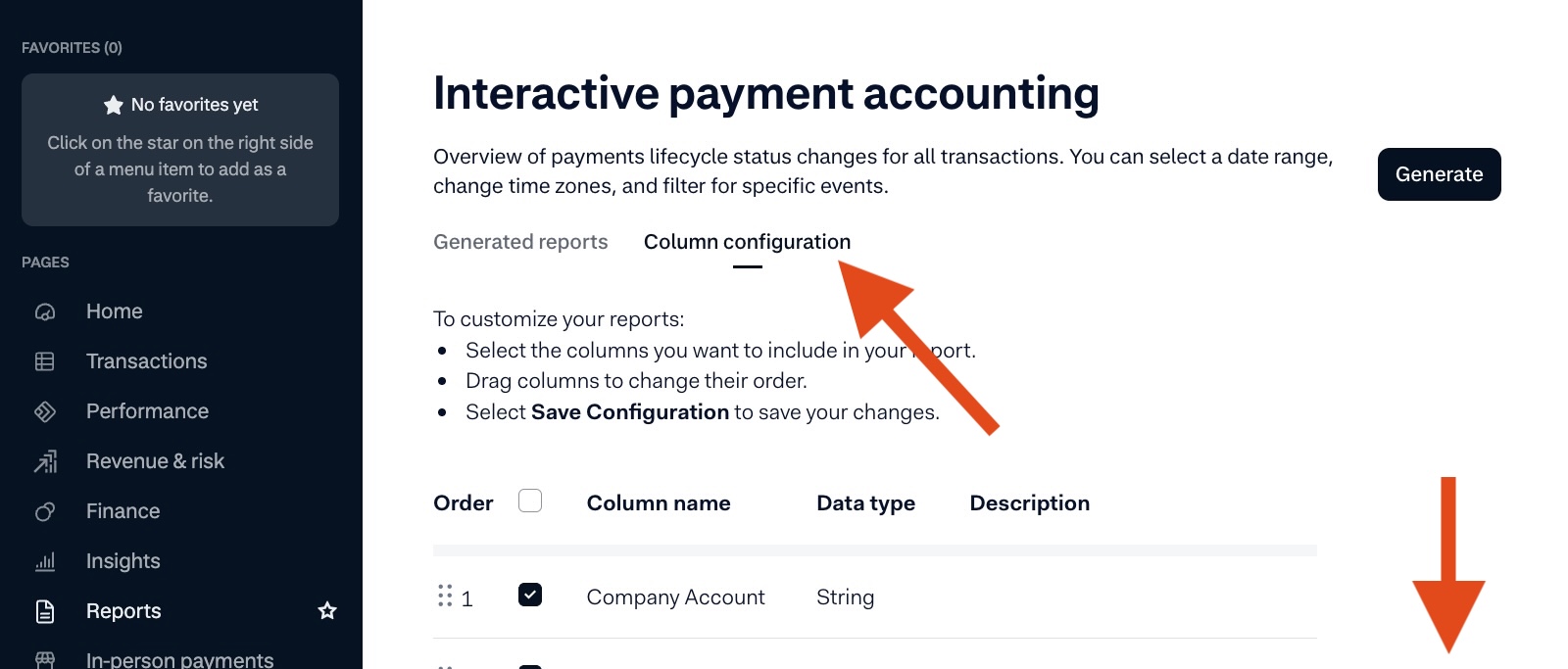
Step 2: Open the Column configuration tab and scroll down.
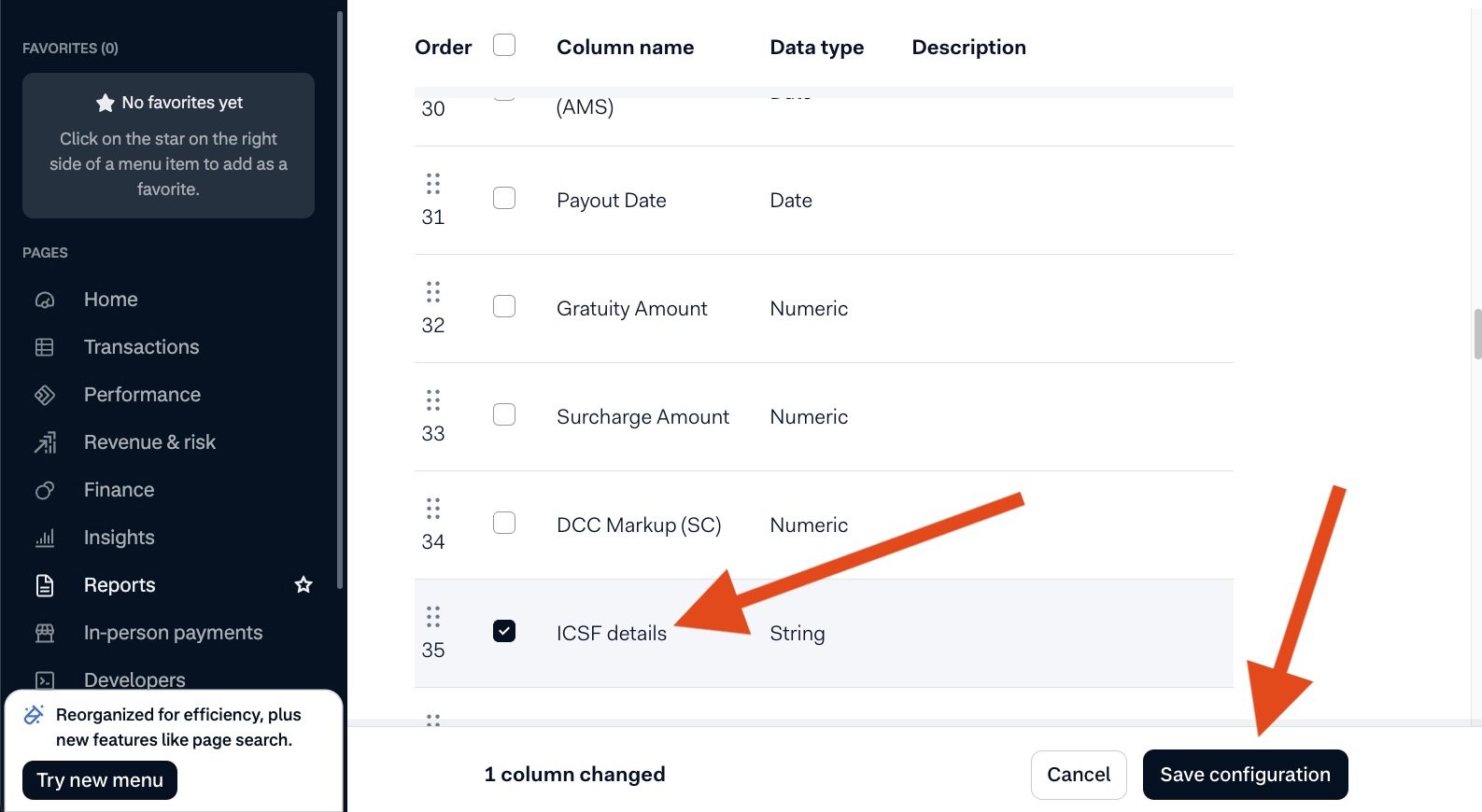
Step 3: Find the ICSF details field, make sure it is checked, then click Save configuration.
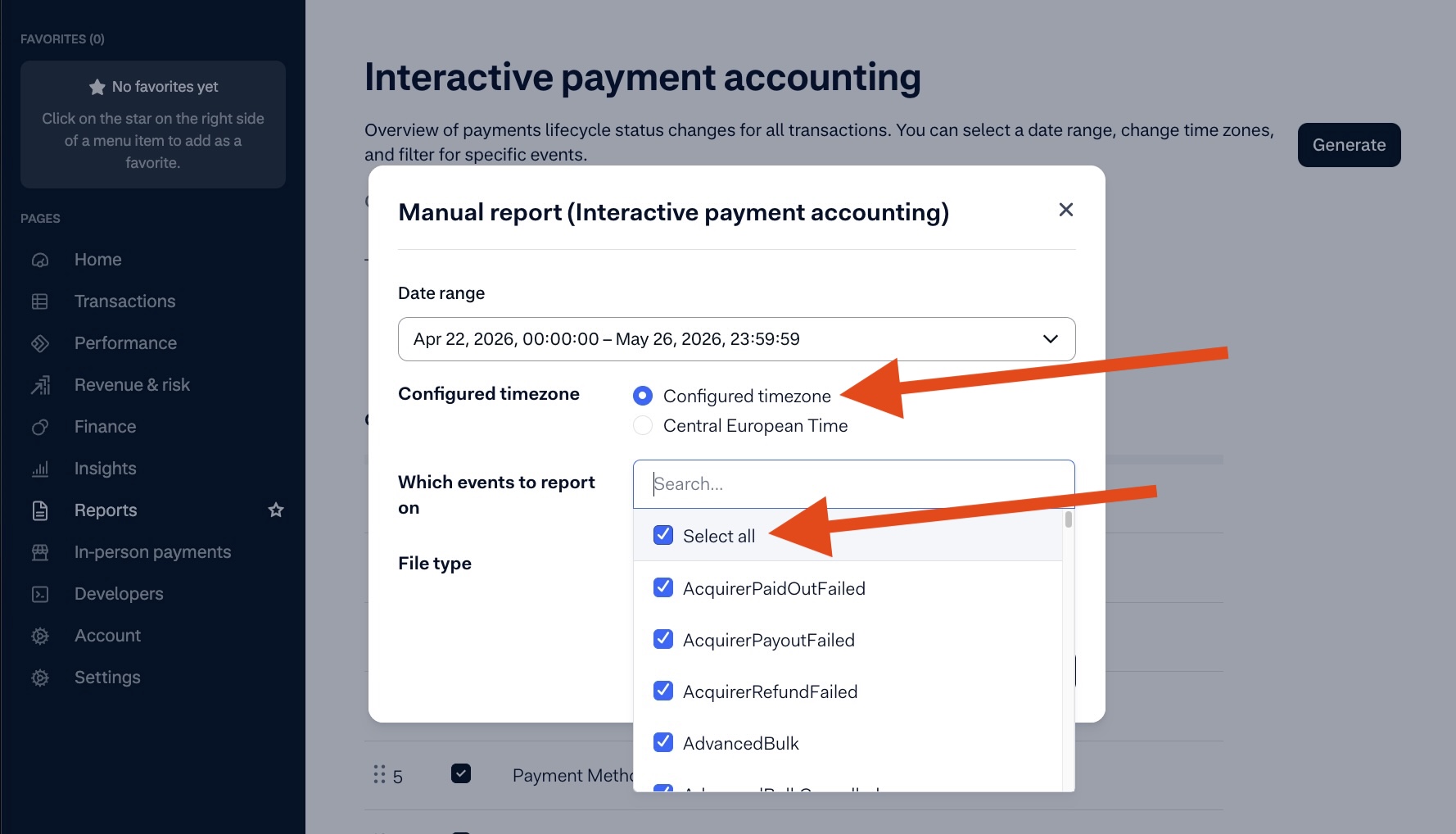
Step 4: Click the Generate button, then set the date range to 2026-04-22 thru 2026-05-26.
Step 5: Select the Configured timezone option, then choose Select all under Which events to report on.
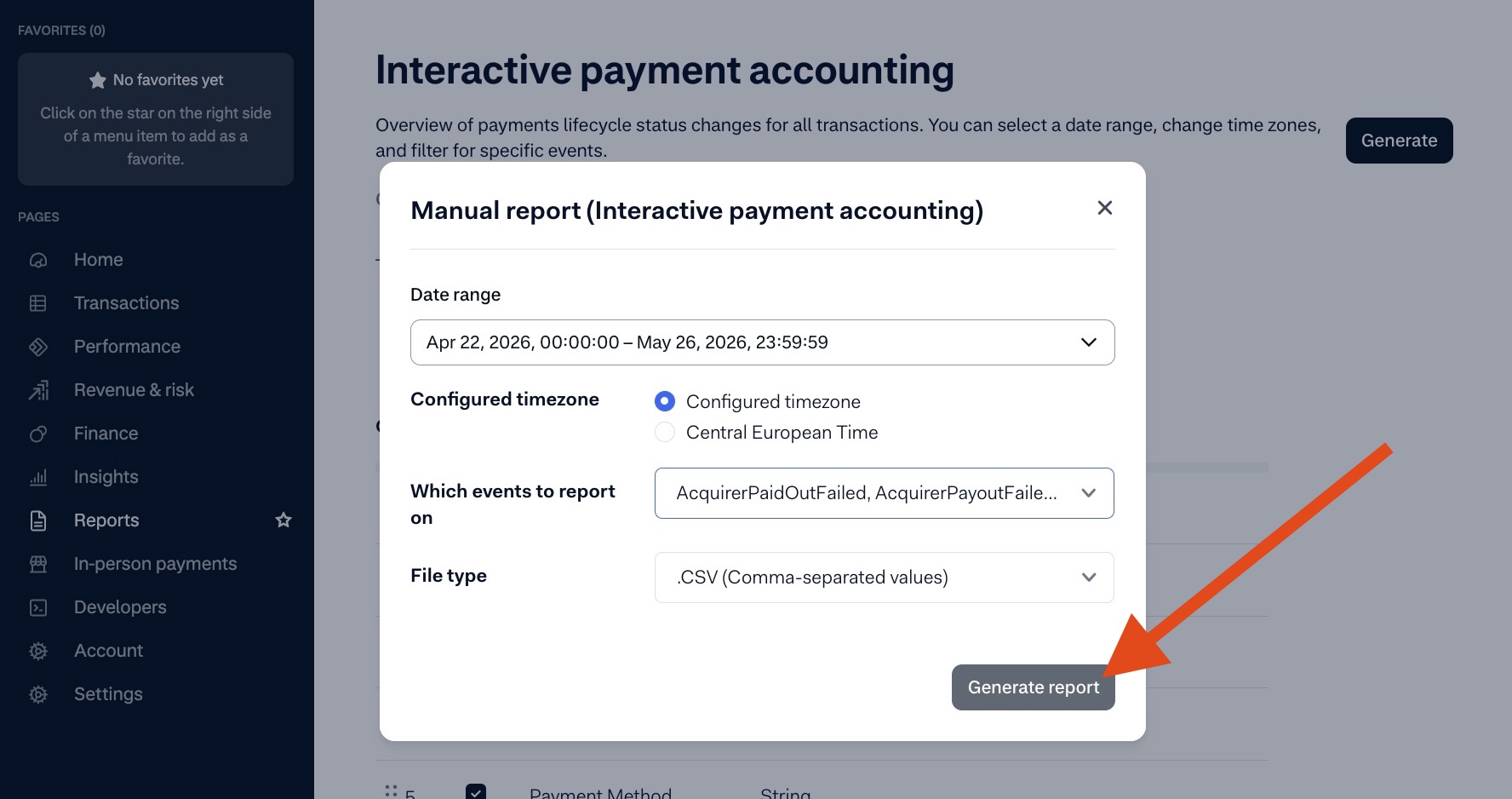
Step 6: Leave the file type as .CSV (Comma-separated values), then click Generate report.
Step 7: When the report finishes generating, click the download icon to download the CSV file.
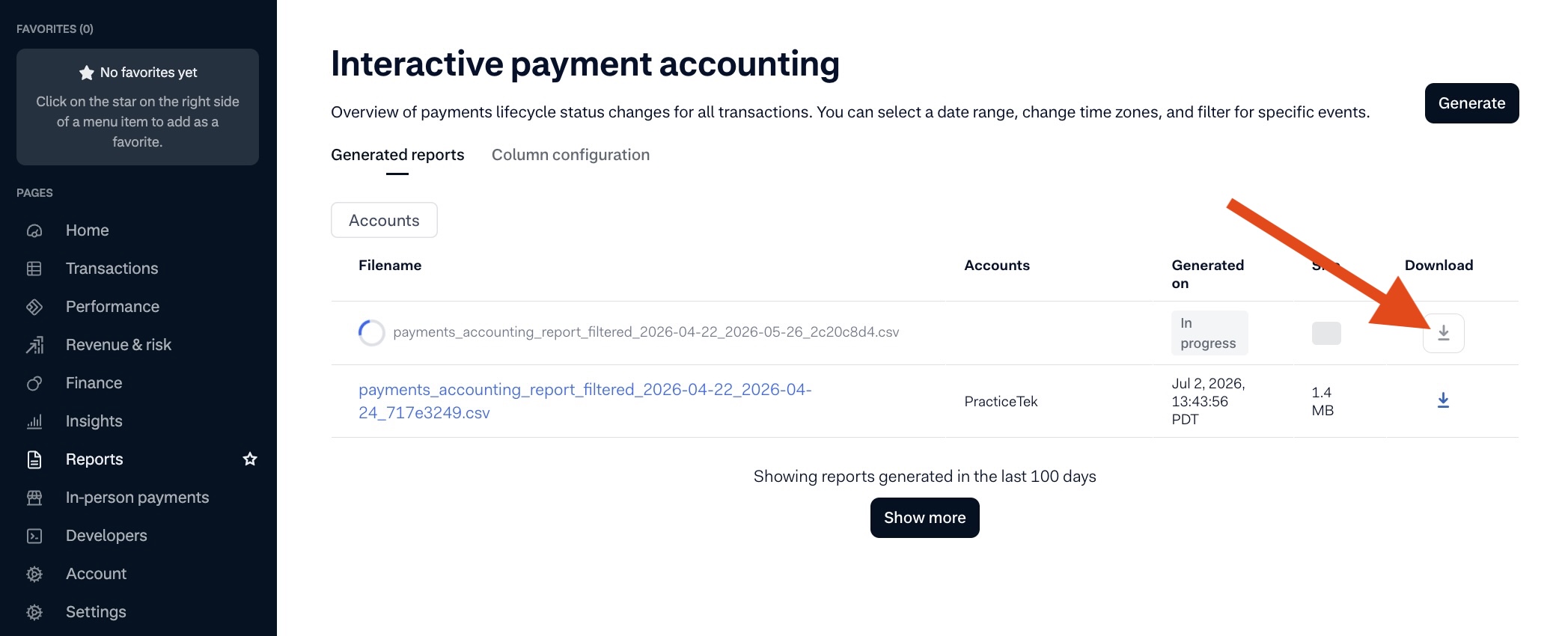
A CSV file will be downloaded to your computer, please pass that file along to your Rivet account manager.